I used to work with Digital Equipment Corporation (DEC) VAX systems and for fun built up a VMS 7.1 system using the amazing processor simulator SIMH to get a VAX8600 running. One of the challenges was lack of TCP/IP networking stack to push software backup savesets to the system. One process involves creating an ISO of local files then mounting that image inside SIMH and mounting it in VMS. Painful since it modifies the files and filenames.
This is a from-scratch implementation of DEC Files-11 (ODS-2) utility to copy local files from a Linux (likely a Mac too) system to an ODS-2 disk volume that is usable by SIMH simulator running a VAX/VMS (vax8600) OpenVMS 7.1 system.
The ods2v2 utility can run a minimal set of VMS DCL type commands on the disk file, with the intent of transferring files into or out of the VMS system. Reads and writes real ODS-2 disk images – the same format real VMS’s own MOUNT, INITIALIZE, COPY, and DIRECTORY commands use. No VMS installation, SIMH emulator, or license required to use it.
Built directly from the Files-11 On-Disk Structure Specification, not from copying an existing implementation, and validated repeatedly against real OpenVMS 7.1 (via SIMH) throughout development with real MOUNT / DIR / TYPE / COPY and ANALYZE/DISK commands on a vax8600 running OpenVMS 7.1 in simh. Every significant bug this project found (a word-swapped 32-bit field, an inverted bitmap convention, directory records needing to be storage-sorted) was found with analysis on an OpenVMS system.
In my previous post How to Build a ProxMox Hypervisor Cluster with NAS Disk I described the configuration of QNAP NAS iSCSI LUNs to support ProxMox hypervisor servers with the goal of highly available high performance disk. In this post I will outline the configuration of VMs within the ProxMox cluster to gain disk replication across specific hypervisor hosts. Replication is a pretty slick and painless way to provide (higher) availability of VMs both for maintenance activities as well as host node failures without the complexity of full HA Cluster configuration. I do have pretty substantial experience with Linux Virtual Sever (LVS) and commercial clustering solutions, so I will likely address the ProxMox version of that capability in a future article.
To recap from my previous article, each of the three (3) ProxMox hosts has a pair of mirrored HDD, which are only used for ProxMox OS. Each host also has a single SSD for the occasional IOPs hungry VM. Although single local disk does present a failure risk, at this point in my network design, that is a deliberate choice. Any VM that cannot tolerate that single point of failure is required to use the iSCSI zpool. Also the goal at this point is not to go overboard on elimination of every single point of failure, just the highest probabilities. At this point there are three (3) different hosts, three (3) separate UPS, all using multiple network adapters for performance management. QNAP NAS iSCSI volumes are used for disk redundancy.
Design
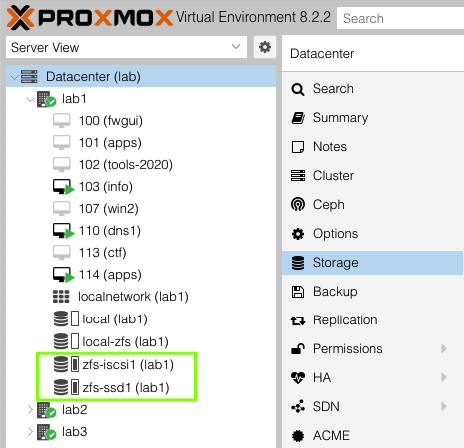
Adding replication to any of my ProxMox VMs is made straight forward by a couple of design choices. Every ProxMox host has the same ZFS zpool storage groups which are all named the same across each host – currently two: zfs-ssd1 (local SSD on each host) and zfs-iscsi1 (QNAP NAS served iSCSI LUNs dedicated to each host). Technically VMs could use the local ZFS rpool, however I’ve chosen to keep VM disks completely separate from local ProxMox OS storage.
Generally the entire process involves three simple steps: Create VM, Configure Replication, Request Migration.
Setup our VMs
We can create the guest VMs as usual, but must specify virtual disk volumes within the zfs-ssd1, zfs-iscsi1, or both ZFS storage pools.
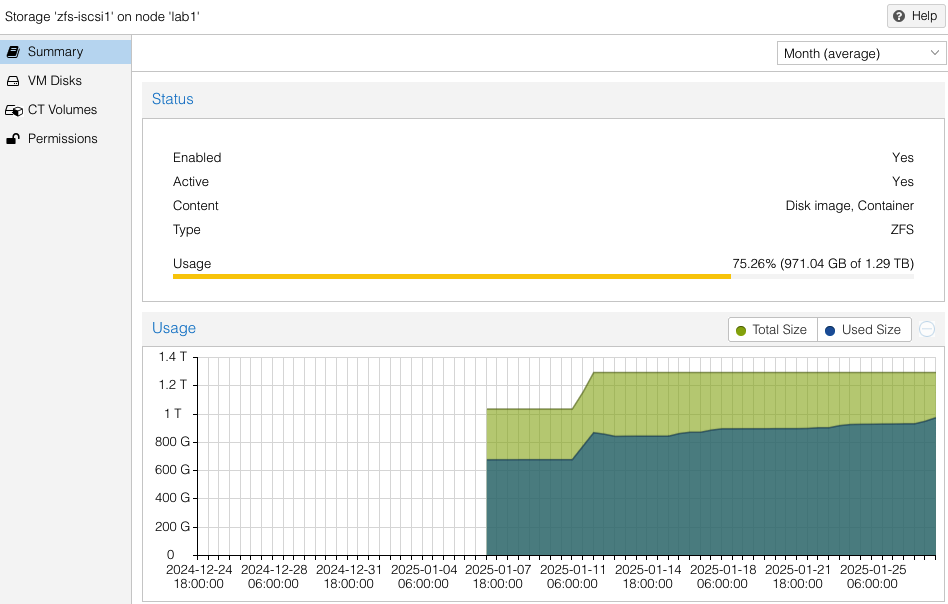
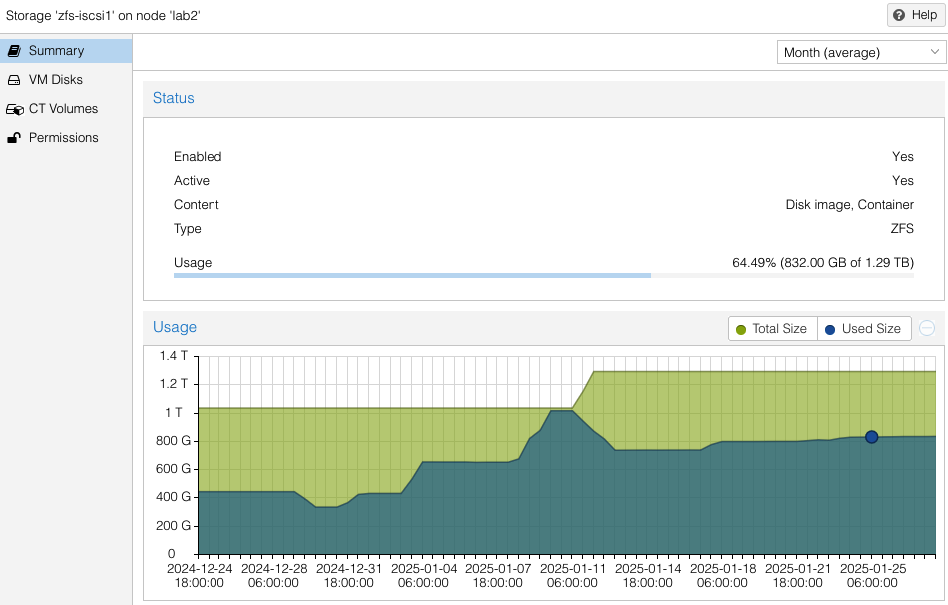
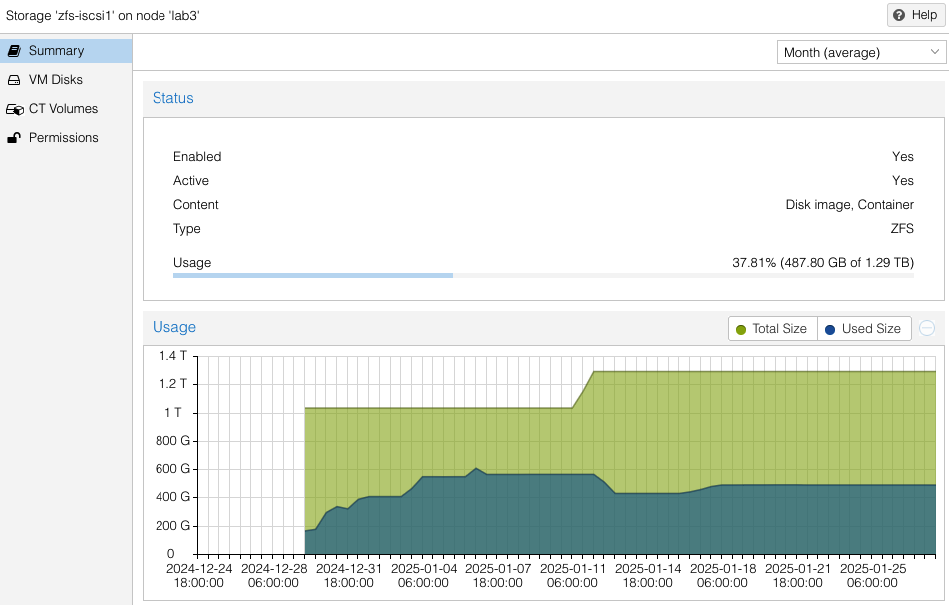
Use host > zfs-ssd1 > Summary and host > zfs-iscsi1 > Summary pages in the UI to determine capacity left on each host. As you would expect, allocation of space for a VM needs to take place on all hosts on which that VM is desired to be replicated. Replicating a VM to all hosts will take 3x the storage allocation versus having no replication.
Note the availability and allocation of iSCSI storage on each of the three (3) ProxMox hosts. Might seem like lab2 was setup first, then lab3, then lab1. Actually both lab3 and lab1 were rebuilt after the initial three (3) node cluster was built. No loss of VMs occurred since I had all VMs replicated to the surviving cluster nodes while I did a rolling rebuild – there was always at least two cluster hosts. Also you can see at the beginning of January (01-11) zfs-iscsi1 pool was running out of space to allocate to either VMs or replication. I simply added another 250GB iSCSI LUN from the QNAP and extended the zfs-iscsi1 pool. More on that later.
VM Example – Replication to One Host
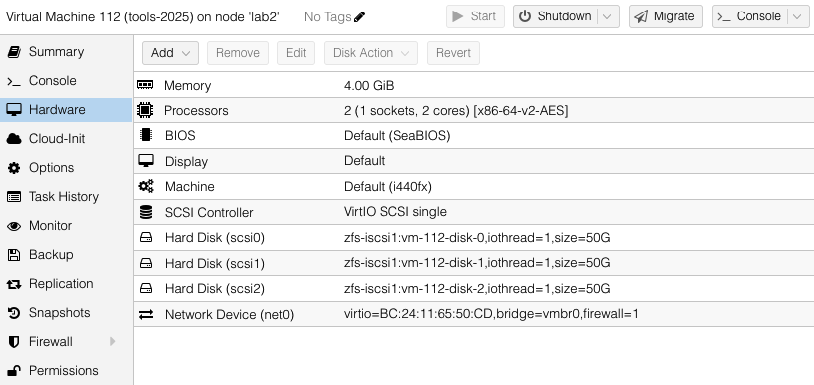
Our first VM will have multiple virtual disks located in the zfs-iscsi1 pool. These are all in the zfs-iscsi1 pool, however it could just as easy have a mix of zfs-iscsi1 and zfs-ssd1 virtual disks – presuming there is sufficient space available in the target host pools to which we intend to replicate. There is no restriction of number of pools used by the VM, just as long as those pool names are available on the target host.
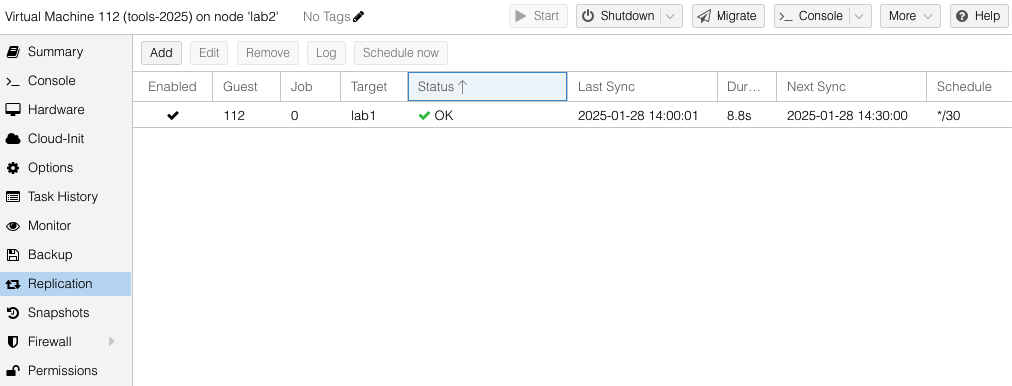
We will configure the tools-2025 VM to replicate to one other host – lab1.
While creating the replication job, dialog boxes are used to select destination host(s) and the frequency of the replication. Sync jobs are run by taking zpool snapshots and sending those snapshots to the target host. Typical cadence would be every 15 minutes for sync of important VMs. Offline or less important VMs can sync hourly, nightly or even monthly – similar options as what you would find with Linux crontab jobs. Shortly after you have created the replication job, ProxMox will get it running in the background.
Difference Between Replicate and Migrate
Replication jobs run on a regular basis to push ZFS snapshots to the target hosts. When a migration of VM from one host to another is requested – literally a button push – the replication will speed the migration through the use of snapshots that are already on the target host. It is not necessary to have replication jobs enabled in order to migrate a VM, however it will take longer to migrate the more disk data that has to be synchronized. When migrating VMs with a large amount of storage that has not been replicated, it can take a very long time to run and possibly not successfully complete in the case of attempting live migrations. More on this in the next example.
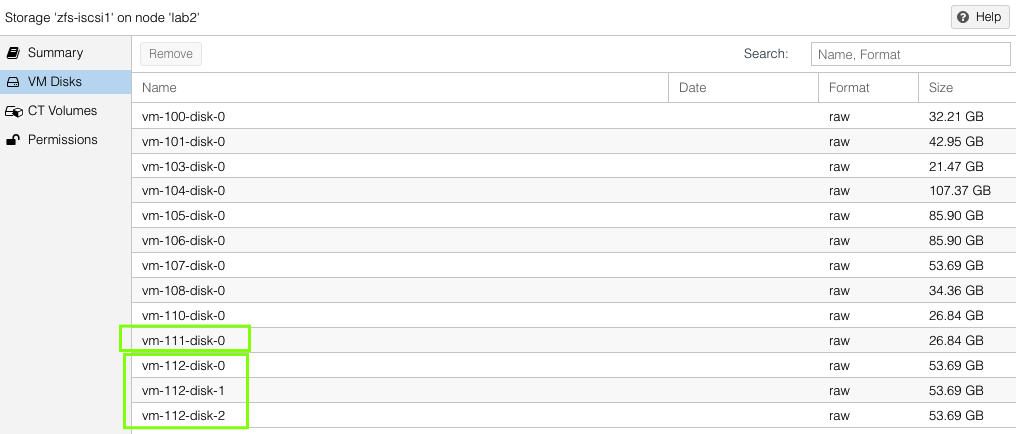
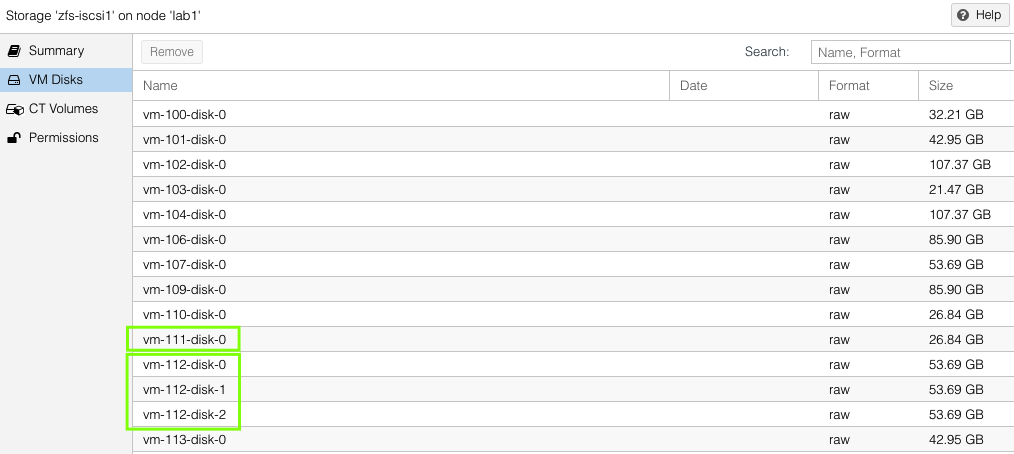
On each host, one can see the VM virtual disks that have been replicated by looking at host > ZFS pool name > VM Disks. This list will be the same on both the source and the target hosts.
VM Example – Replication to Two Hosts
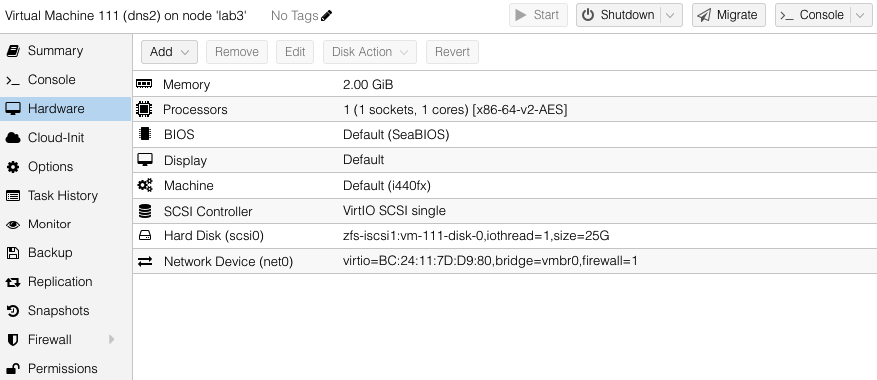
Our second VM will have a single virtual disks located in the zfs-iscsi1 pool but is going to replicate to both of the other standby ProxMox hosts.
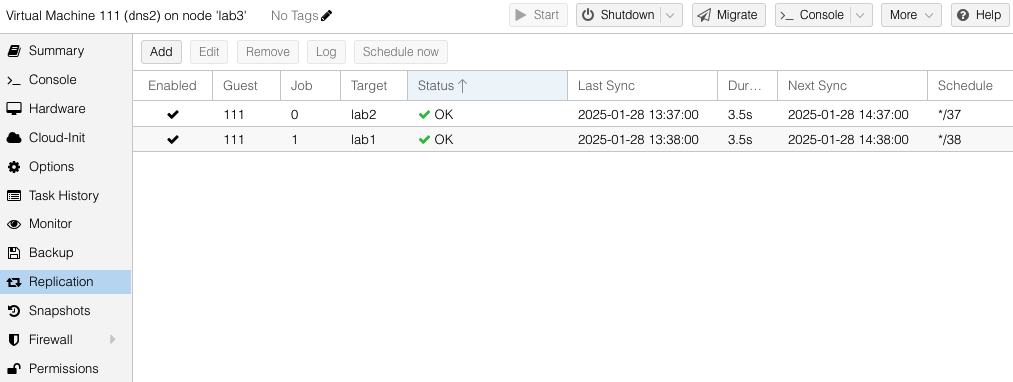
You can see both the replication jobs configured for VM 111, one to lab1 and the other to lab2. The replication job frequency is completely flexible however I have chosen to offset the schedules to reduce the disk use bandwidth.
Migration to Target Host
Migrations can be either offline (VM powered off) or live. To request a migration, we just select the Migrate button under the VM to be moved. Live migrations are just that – it replicates then moves a running VM to a target host with no perceived downtime.
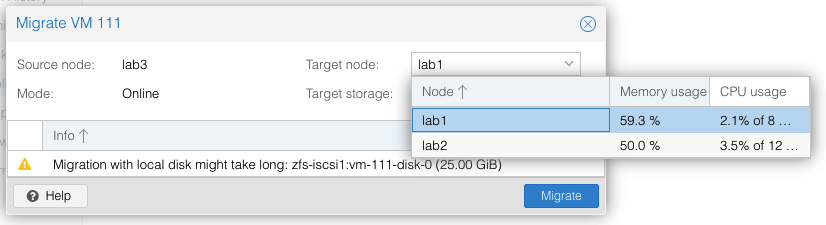
The migrate menu will show you the current CPU and memory load of the available target systems. Fastest migrations are offline VMs that have had a recent replication job complete. Large VMs with lots of disk and memory and no prior replication have been known to fail to migrate – it is complicated to snapshot live memory for synchronization to a target host. All but the largest of VMs I have (looking at you elasticsearch) have no problems in migrating live in less than maybe 30 seconds for 4GB of memory.
In the case there is sufficient CPU and memory capacity on the target host, one can request a Bulk Migration operation from the main menu of the source host. I have used this several times to perform maintenance on cluster hosts where downtime is needed. The live migration of VMs is amazing .. makes life so much easier, with no VM reboot or downtime.
Failure Recovery
The scenarios I have outlined so far are most common, however one of the key use cases I wanted to be able to cover is what happens when a ProxMox host unexpected fails.
Fortunately a surviving host can start the failed VMs from last transferred snapshot. Clearly any data that was changed after the last replication snapshot will be lost. Not great for any VMs that are hosting applications / functions that are frequently changing, such as database servers. This ability is still sufficient for my use case and situation – low chance of host failure causing total data corruption (still not zero but far better than what I had before). A future article will focus on use of HA Cluster features including global cluster filesystems to cover those systems I have that have high(er) integrity requirements.
For example purposes, assume a three (3) node ProxMox hypervisor cluster without HA as I’ve described above. Two ZFS disk pools, zfs-ssd1 and zfs-iscsi1. We’ll reference six (6) guest VMs that have been created and configured to be using disk volumes within the zfs-iscsi1 pool. Currently two (2) VM are on each ProxMox host. Replication jobs have been configured on all VM to replicate every 15 minutes to both other ProxMox hosts. VMs on lab1 are vm-1 and vm-2. VMs on lab2 are vm-3 and vm-4. VMs on lab3 are vm-111 and vm-112. In this case assume lab3 has suddenly failed and is completely offline/powered off. The following process will allow a restart of vm-111 and vm-112 on either lab1 or lab2. For simplicity let’s restart vm-111 on lab1 and vm-112 on lab2.
Verify Replication
We need to confirm that the replication data for vm-111 and vm-112 exists on lab1 and lab2:
lab1:
  zfs list | grep "vm-111"

zfs-iscsi1/vm-111-disk-0 28.2G 323G 2.81G -
Since we see datasets zfs-iscsi1/vm-111-disk-0 and zfs-iscsi1/vm-112-disk-0, the replication data appears to be intact.
Import the VM Configuration
Each VM has a configuration file in /etc/pve/qemu-server/ on the Proxmox cluster.
Check if the config files for vm-111 are on lab1 and vm-112 are present on lab2:
  lab1# ls /etc/pve/qemu-server

100.conf  101.conf  102.conf  103.conf	111.conf  113.conf
 lab2# ls /etc/pve/qemu-server

100.conf  112.conf  118.conf
Since the config files exist, we can proceed to the next step. If those files do not exist, move the configuration files manually from the lab3 replicated configuration. ProxMox uses cluster filesystem for /etc/pve directory so those files should be in the /etc/pve/qemu-server/lab3 directory.
 lab1# cd /etc/pve
 lab1# mv nodes/lab3/qemu-server/111.conf qemu-server/
Next we need to verify manual adjustment of VM configuration not needed. Ensure the disk paths in the configuration files match the replicated ZFS datasets on the new host. Since our design uses the same ZFS zpool names on all ProxMox hosts, should not need to change the paths which will look like:
scsi0: zfs-iscsi1:vm-105-disk-0
Start the VMs
Once the configuration is correct, start the VMs on either lab1 or lab2.
On lab1, start vm-111:
qm start 111
On lab2:
qm start 112
Verify VM Status
Check the status of the VMs to ensure they are running:
  qm status 111

status: running

  qm status 112

status: running
Optional: Migrate VMs for Balance
If needed those VMs can now be migrated live. To migrate vm-111 to lab2:
qm migrate 111 lab2 --online
Remember there may not be a valid zpool snapshot for vm-111 on lab2, so it may take some time. I’ll expand on this failure recovery procedure in a future article.
Extending ZFS Pool zfs-iscsi1
When I needed to expand the space available in zfs-iscsi1 on lab2, the process was pretty straight forward. Follow the same instructions in my first article to create a new iSCSI target and 250GB LUN for each host in the cluster. For instance, I created lab1_lun4, lab2_lun4, and lab3_lun4. Use the iscsiadm commands for discovery against the QNAP NAS network interface that each lab cluster node is using. Follow same iscsiadm, lsblk and sgdisk commands to locate and label the new disk and enable auto login.
Extend the existing zfs-iscsi1 zpool with zpool add command. Use the newly added disk name as shown by lsblk, in this example /dev/sdh is the newly added disk:
 zpool add zfs-iscsi1 /dev/sdh
 zpool list

NAME       SIZE  ALLOC   FREE  ...   FRAG    CAP  DEDUP    HEALTH
rpool      928G  4.44G   924G          0%     0%  1.00x    ONLINE
zfs-ssd1   476G   109G   367G          1%    22%  1.00x    ONLINE
zfs-iscsi1 1.21T  183G   1.03T         5%    14%  1.00x    ONLINE
Expanded Architecture Enabling More Replication
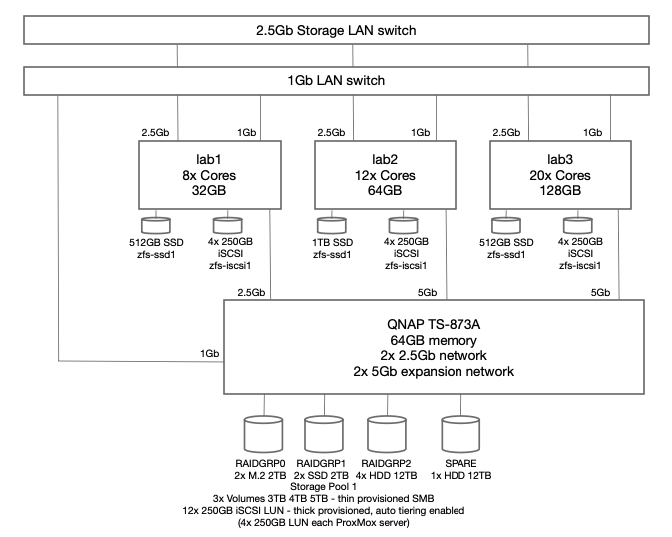
To ensure dedicated high speed access to iSCSI disk LUNs and also to enable replication to multiple hosts, I revised the architecture to include an additional private 2.5Gb network segment dedicated to migration traffic. Using a dedicated 2.5Gb switch
Specific migration configuration settings only apply to the entire cluster including all nodes. Unless otherwise configured, ProxMox will use the primary cluster IP addresses and NICs for migration traffic. Problem is that is typically the production network adapter and could only be 1 Gbs. Since I was using a dedicated NIC for iSCSI access, I decided to use dual NIC cards and use a dedicated 2.5Gb network segment for migration traffic, while the other NIC is dedicated to iSCSI traffic via a unique IPv4 subnet for each server connection to the QNAP server.
Migration traffic is encrypted using an SSH tunnel by default. On secure, completely private networks this can be disabled to increase performance.
migration: type=insecure,network=10.3.11.0/24
Once the datacenter.cfg file has been updated, shortly (usually less than 30 seconds) ProxMox will start using the new network for migration traffic. Watching the migration progress dialog box we can see that transfer rates are routinely hitting 200MB/s and some peaks at 300MB/s. Bonus all that traffic does not compete with either Production network or iSCSI network traffic.
Next I’ll explore the HA Clustering capabilities of ProxMox.
After struggling to recover a moderately important VM on one of my home lab servers running generic CentOS libvirt, a colleague suggested I investigate ProxMox as a replacement to libvirt since it offers some replication and clustering features. The test was quick and I was very impressed with the features available in the community edition. It took maybe 15-30 minutes to install and get my first VM running. I quickly rolled ProxMox out on my other two lab servers and started experimenting with replication and migration of VMs between the ProxMox cluster nodes.
The recurring pain I was experiencing with VM hosts centered around primarily failed disks, both HDD and SSD, but also a rare processor failure. I had already decided to invest a significant amount of money into a commercial NAS (one of the major failures was irrecoverability of a TrueNAS VM with some archive files). Although investing in a QNAP or Synology NAS device would introduce a single point of failure for all the ProxMox hosts, I decided to start with one and see if later I could justify the cost for a redundant QNAP. More on that in another article.
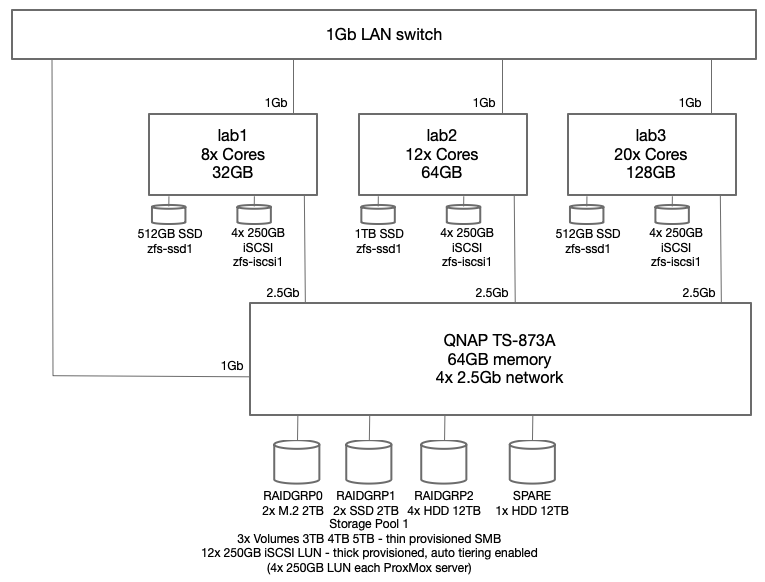
The current architecture of my lab environment now looks like this:
Figure 1 – ProxMox Storage Architecture
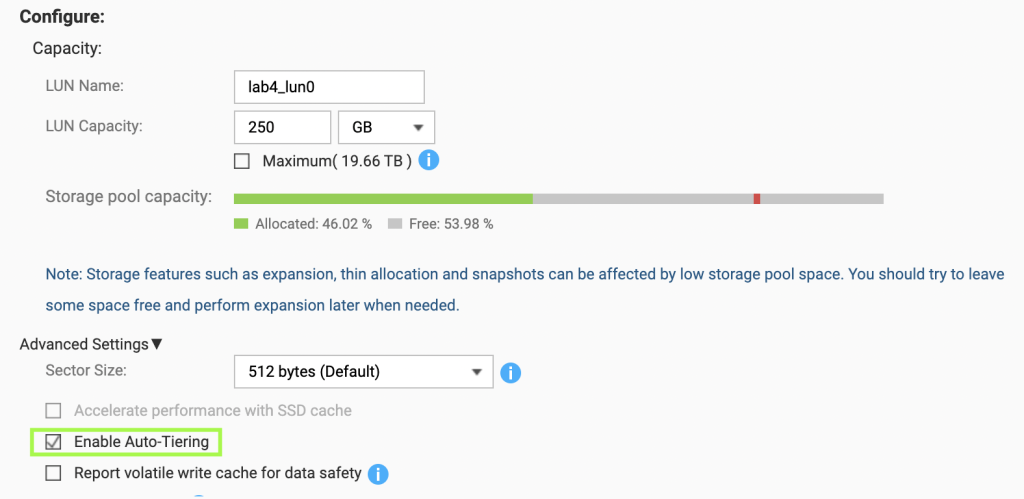
To reduce the complexity, I chose to setup ProxMox for replication of VM guests and allow live migration but not to implement HA clustering yet. To support this configuration, the QNAP NAS device is configured to advertise a number of iSCSI LUNs, each with a dedicated iSCSI target hosted on the QNAP NAS system. Through trial and error testing I decided to configure four (4) 250GB LUNs for each ProxMox host. All four (4) of those LUNs are added into a new ZFS zpool making 1TB of storage available to each ProxMox host. Since this iteration of the design is not going to use shared cluster aware storage, each host has a dedicated 1TB ZFS pool (zfs-iscsi1) however each pool is named the same to facilitate replication from one ProxMox host to another. For higher performance requirements, I also employ a single SSD on each host which have also been placed into a ZFS pool (zfs-ssd1) named the same on each host.
A couple of notes on architecture vulnerabilities. Each ProxMox host should have dual local disks to allow ZRAID1 mirroring. I chose to have only single SSD in each host to start with and tolerate a local disk failure – replication will be running on critical VM to limit the loss in the case of a local SSD failure. Any VM that cannot tolerate any disk failure will only use the iSCSI disks.
Setup ProxMox Host and Add ProxMox Hosts to Cluster
Assuming the new host has dual disks that can be mirrored, chose Advanced for the boot disk and select ZRAID1 – this will allow you to select the two disks to be mirrored
Follow the installation prompts and sign in on the console after the system reboots
Setup the local SSD as ZFS pool “zfs-ssd1”
Use lsblk to identify local disks attached to find the SSD
 lsblk

sda      8:0    0 931.5G  0 disk
├─sda1   8:1    0  1007K  0 part
├─sda2   8:2    0     1G  0 part
└─sda3   8:3    0 930.5G  0 part
sdb      8:16   0 476.9G  0 disk
sdc      8:32   0 931.5G  0 disk
├─sdc1   8:33   0  1007K  0 part
├─sdc2   8:34   0     1G  0 part
└─sdc3   8:35   0 930.5G  0 part
 zpool create zfs-ssd1 /dev/sdb
 zpool list

NAME       SIZE  ALLOC   FREE  ...   FRAG    CAP  DEDUP    HEALTH
rpool      928G  4.44G   924G          0%     0%  1.00x    ONLINE
zfs-ssd1   476G   109G   367G          1%    22%  1.00x    ONLINE
Update /etc/pve/storage.cfg and ensure ProxMox host is listed as a node for zfs-ssd1 pool. Initial entry can only list the first node. When adding another ProxMox host, the new host gets added to the nodes list.
zfspool: zfs-ssd1
	pool zfs-ssd1
	content images,rootdir
	mountpoint /zfs-ssd1
	nodes lab2,lab1,lab3
Note the /etc/pve files are maintained in a global filesystem and any edits while on one host will reflect on all other ProxMox cluster nodes.
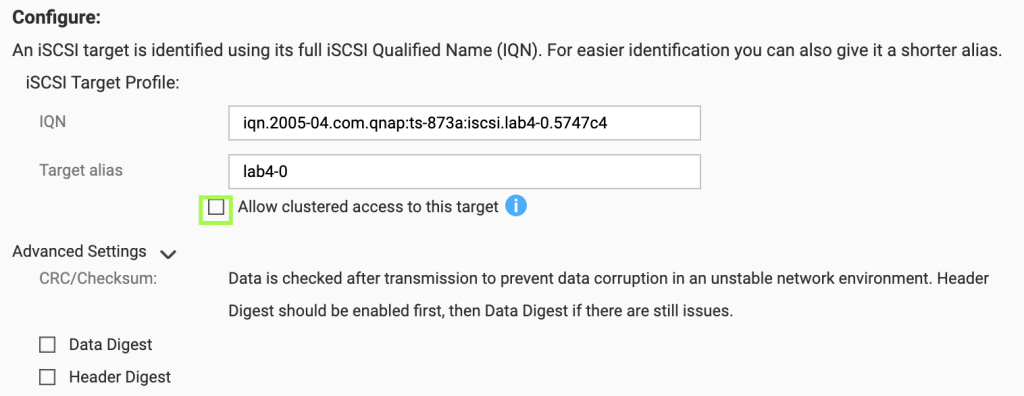
Configure QNAP iSCSI targets with attached LUNs
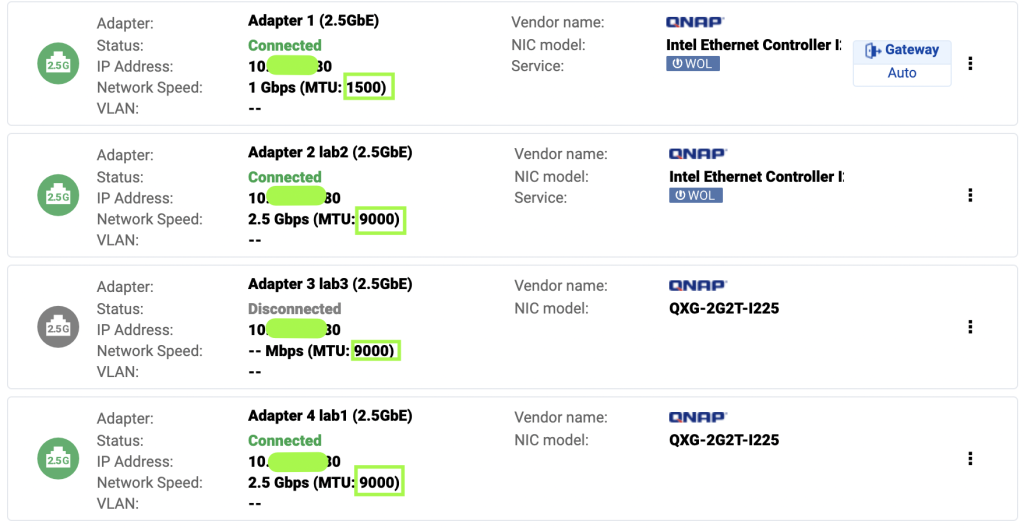
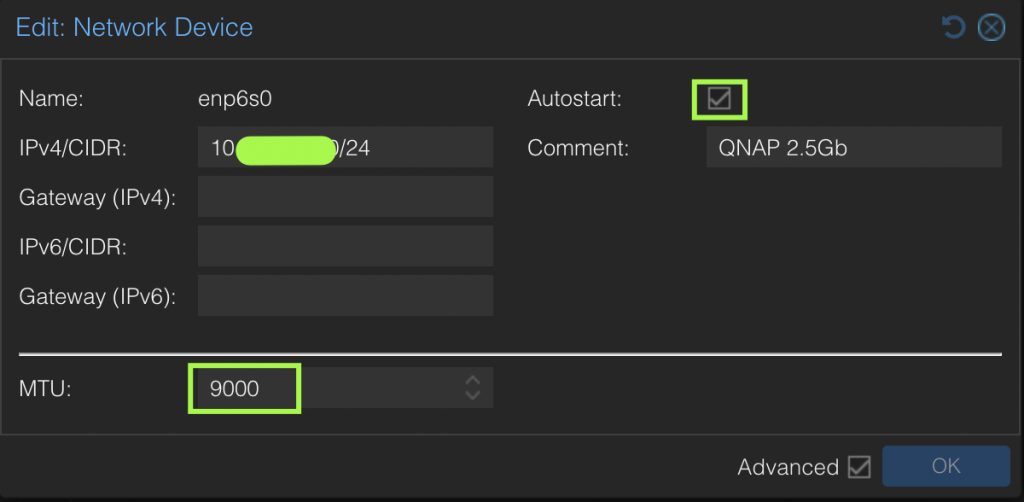
Configure network adapter on ProxMox host for the direct connection to QNAP, ensure MTU is set 9000 and speed 2.5Gb
Setup iSCSI daemon and disks for creation of zfs-iscsi1 ZFS pool
Update /etc/iscsi/iscsid.conf to setup automatic start, CHAP credentials
Validate connection to QNAP, ensure no sessions exist do discovery of published iSCSI targets. Ensure to use the high speed interface address of the QNAP.
In the output of the discovery it appears there are two sets of targets. This is due to multiple network adapters under Network Portal on the QNAP being included in the targets. We will use the high speed address (10.3.1.80) for all the iscsiadm commands.
Execute login to each iSCSI target
 iscsiadm -m node -T iqn.2005-04.com.qnap:ts-873a:iscsi.lab1-0.5748c4 -p 10.3.1.80:3260 -l
Logging in to [iface: default, target: iqn.2005-04.com.qnap:ts-873a:iscsi.lab1-0.5748c4, portal: 10.3.1.80,3260]
Login to [iface: default, target: iqn.2005-04.com.qnap:ts-873a:iscsi.lab1-0.5748c4, portal: 10.3.1.80,3260] successful.

 iscsiadm -m node -T iqn.2005-04.com.qnap:ts-873a:iscsi.lab1-1.5748c4 -p 10.3.1.80:3260 -l
Logging in to [iface: default, target: iqn.2005-04.com.qnap:ts-873a:iscsi.lab1-1.5748c4, portal: 10.3.1.80,3260]
Login to [iface: default, target: iqn.2005-04.com.qnap:ts-873a:iscsi.lab1-1.5748c4, portal: 10.3.1.80,3260] successful.

 iscsiadm -m node -T iqn.2005-04.com.qnap:ts-873a:iscsi.lab1-2.5748c4 -p 10.3.1.80:3260 -l
Logging in to [iface: default, target: iqn.2005-04.com.qnap:ts-873a:iscsi.lab1-2.5748c4, portal: 10.3.1.80,3260]
Login to [iface: default, target: iqn.2005-04.com.qnap:ts-873a:iscsi.lab1-2.5748c4, portal: 10.3.1.80,3260] successful.

 iscsiadm -m node -T iqn.2005-04.com.qnap:ts-873a:iscsi.lab1-3.5748c4 -p 10.3.1.80:3260 -l
Logging in to [iface: default, target: iqn.2005-04.com.qnap:ts-873a:iscsi.lab1-3.5748c4, portal: 10.3.1.80,3260]
Login to [iface: default, target: iqn.2005-04.com.qnap:ts-873a:iscsi.lab1-3.5748c4, portal: 10.3.1.80,3260] successful.
Verify iSCSI disks were attached
 lsblk
NAME   MAJ:MIN RM   SIZE RO TYPE MOUNTPOINTS
sda      8:0    0 931.5G  0 disk
├─sda1   8:1    0  1007K  0 part
├─sda2   8:2    0     1G  0 part
└─sda3   8:3    0 930.5G  0 part
sdb      8:16   0 476.9G  0 disk
├─sdb1   8:17   0 476.9G  0 part
└─sdb9   8:25   0     8M  0 part
sdc      8:32   0 931.5G  0 disk
├─sdc1   8:33   0  1007K  0 part
├─sdc2   8:34   0     1G  0 part
└─sdc3   8:35   0 930.5G  0 part
sdd      8:48   0   250G  0 disk
sde      8:64   0   250G  0 disk
sdf      8:80   0   250G  0 disk
sdg      8:96   0   250G  0 disk
Update /etc/pve/storage.cfg for the zfs-iscsi1 ZFS pool to show up in the ProxMox GUI. Initial entry can only list the first node. When adding another ProxMox host, the new host gets added to the nodes list.
zfspool: zfs-iscsi1
	pool zfs-iscsi1
	content images,rootdir
	mountpoint /zfs-iscsi1
	nodes lab2,lab1,lab3
To complement the Raspberry Pi based Garden Controller I’ve designed and built, I decided to separate the irrigation valve and pump control onto a separate project and circuit board in order to make it more generically applicable. My intent is to make this Power Controller useful for any designer that has a computer capable of I2C communication.
Since this new Power Controller will be a generic controller that uses I2C communication, provides 24VAC for irrigation valves and also control of external power relays for two pumps, it needs to provide all it’s own power versus only relying on a 3.3v feed from the I2C host. I decided this will be the initial feature set:
Overall
Control of and power for five (5) standard 24VAC irrigation valves
Control of two (2) external 12VDC relays to drive 120VAC pumps (or any supply voltage controlled by the 12VDC relays)
Three (3) general purpose I/O lines, programmable for input or output
Optional AC frequency sense output to host computer
Inputs
1x 120VAC xxA
1x 3.3v I2C control bus (SCL, SDA)
3x 5v generic I/O lines
Outputs
5VDC 200mA max external
12VDC 26mA max external
5x 24VAC direct drive for valves
2x 12VDC external relay for pump control
3.3v interrupt line to host computer for AC frequency sensing
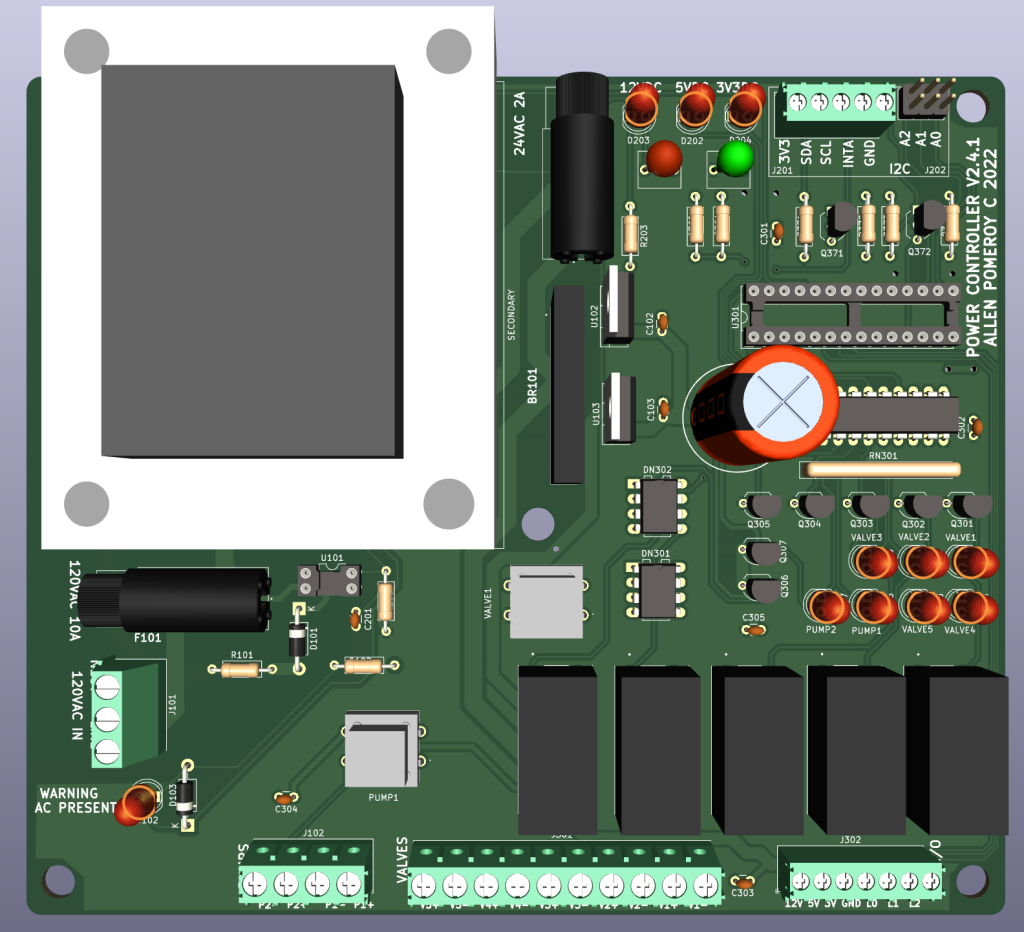
3D PCB View
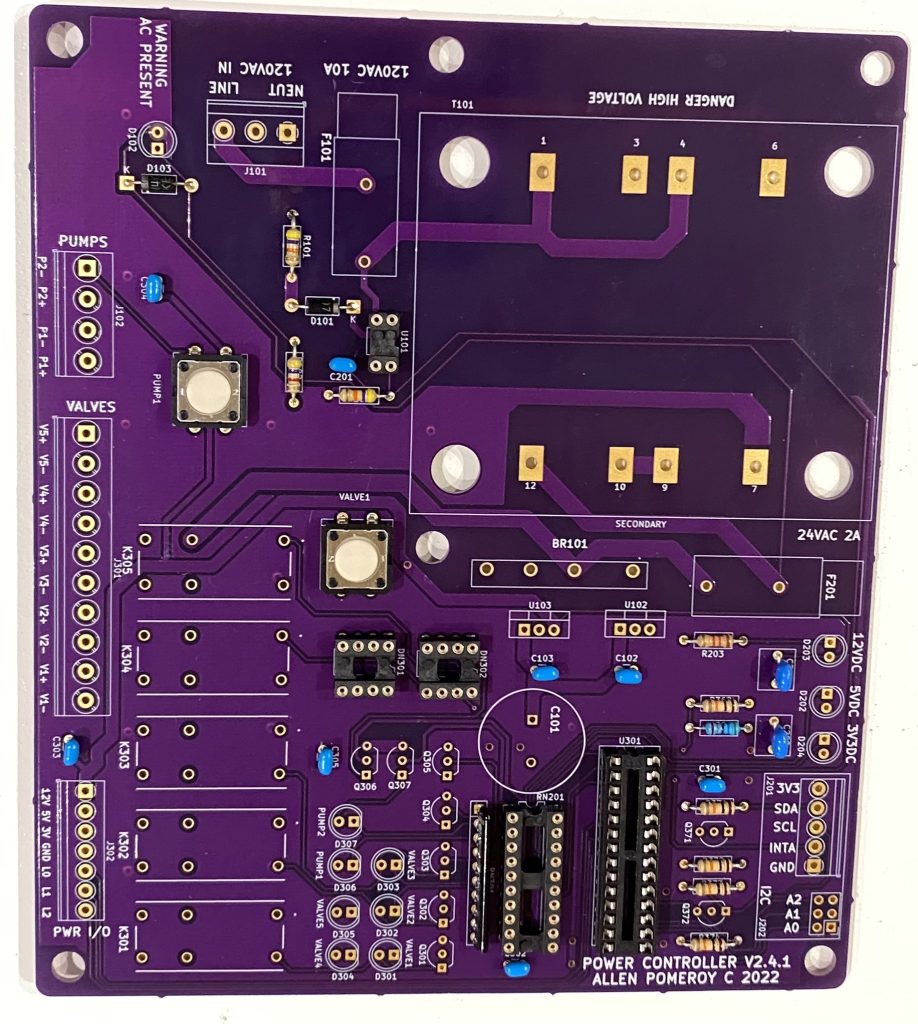
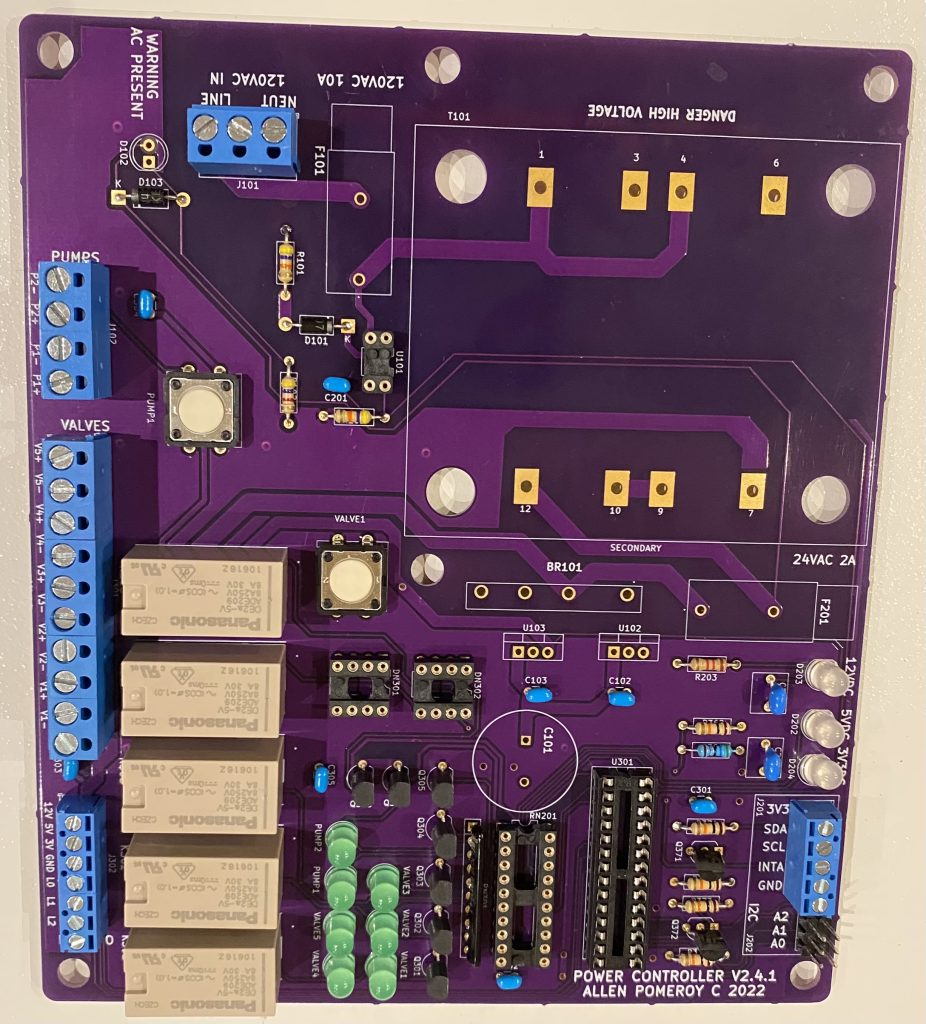
PowerController v2.4.1 Board
Design and Prototype
I used Kicad schematic and PCB design tools to begin building a dedicated power controller board. There is a trade off between having all of the switching and power functions on a single board versus moving the 120VAC switching off board to dedicated power relays. Given the possible high VAC current requirement for switching pumps, I found using the external relays allowed me to substantially reduce the PCB size and width of traces. At the same time, using a transformer that could supply 24VAC directly to the commercial irrigation valves would enable a compact design with minimal external components to the controller board. To offer maximum flexibility, I chose to add the ability to use a small number of the GPIO lines for either input or output along with a modest amount of external 3.3v, 5v and 12v power. The GPIO controller I chose was the MCP230017 which includes a built in I2C interface and two banks of 8 individually addressable I/O lines.
Due to the best valve relay choice and the fact that most of the external sensors I wanted to use, I chose to drive the MCP23017 at 5v although seems possible to also drive at 3.3v. For I2C and interrupt line to host interfaces I included 3.3v – 5v level converters since the Raspberry Pi I2C uses 3.3v levels.
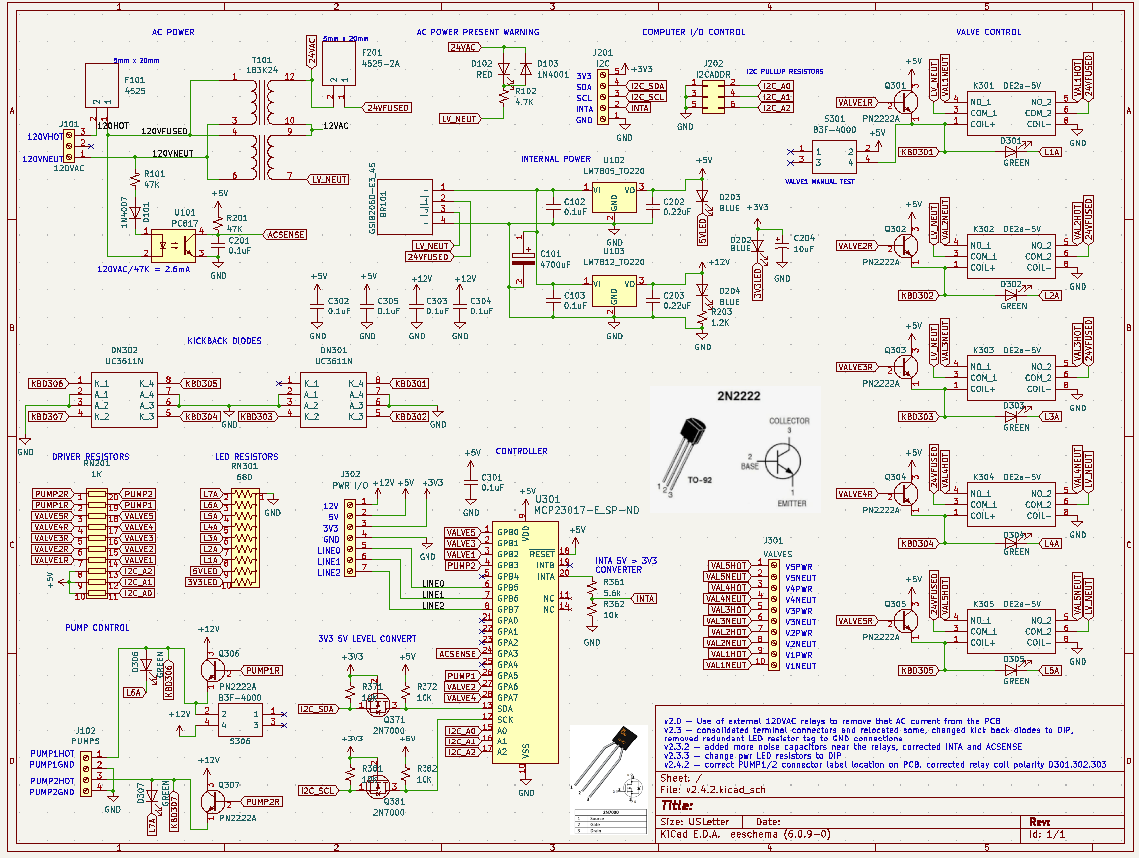
v2.4.2 Schematic
For each of the relays we don’t need more than 40 mA so simple NPN 2N2222 transistors can be used to switch the relay coil voltage. Despite opting to use through-hole components versus surface mount so this board is easier to make for any hobbyists who use this design, I did want to reduce the component count and footprint where possible. Two areas include any pull-up or limiting resistors and all the kick-back diodes on all the switching transistors. DIP and SIP packages reduce both component count and board real estate.
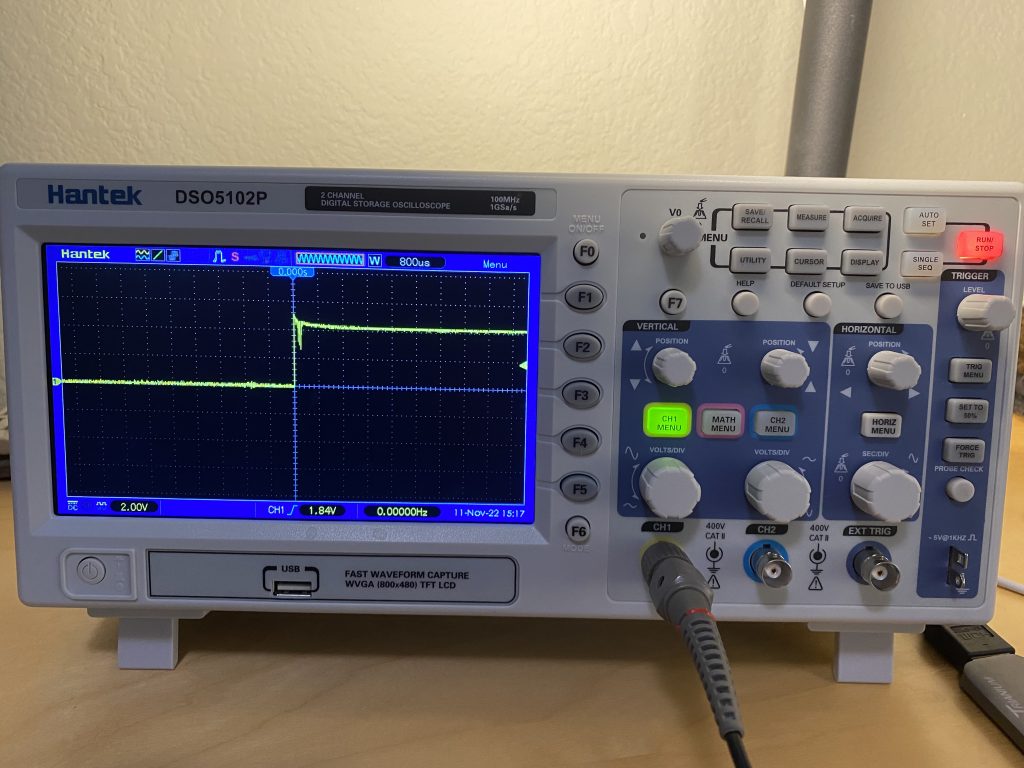
Verification kick-back diodes working as intended
Power Supply Design
Since the Power Controller needs to provide power for the irrigation valves and external pump control relays, I started with the valve requirements. Need to have 24VAC available to drive up to five (5) valves. I chose to use professional grade RainBird LVF075 Low Flow valves since I want reliable operation given the extensive irrigation I’m choosing to install. Given the in-rush and holding current required for each valve, the Hammond 183K24 transformer will suit given it’s 56VA maximum power factor.
5VDC 400mA max 2W (200mA internal max, 200mA external max)
12VDC 167mA max 2W (140mA internal max, 26mA external max)
24VAC 1.5A at 5 valves, leaves 0.83A
Valve requirement is 0.3A in-rush, 0.23A holding current (5 valves = 1.5A in-rush, 1.15A holding current)
Valve power 24VAC x 1.5A = 36W (27.6W holding)
Output (Internal)
5VDC 400mA max
.. each relay 40mA .. 200mA all on x 5 VDC = 1W
.. 200 mA max external supply = 2W
Output (External)
5x 24VAC 1.5 A – direct drive for 24VAC valves
2x 12VDC 70 mA – indirect drive for external 12VDC 120VAC relays
1x 3.3v AC sense interrupt line
3x 5v I/O lines programmable input or output
External 120VAC relays
Tnisesm 2PCS Power Relay DC12V Coil, 30A SPDT(1NO 1NC) 120 VAC with Flange Mounting and 10 Quick Connect Terminals Wires Mini Relay NT90-DC12V-10X
.. 70mA per coil .. 140mA x 12 VDC = 1.68W
Maximum power dissipation on LM340 without heatsink at 50C .. 2W
Other power dissipation guides: 10W enclosed, 20W vented with no heat sinks
Recommend no more than two (2) valves active simultaneously to limit dissipation in the enclosure that houses the PowerController. Pumps can be run simultaneously with valves due to low current draw.
Printed Circuit Board Design
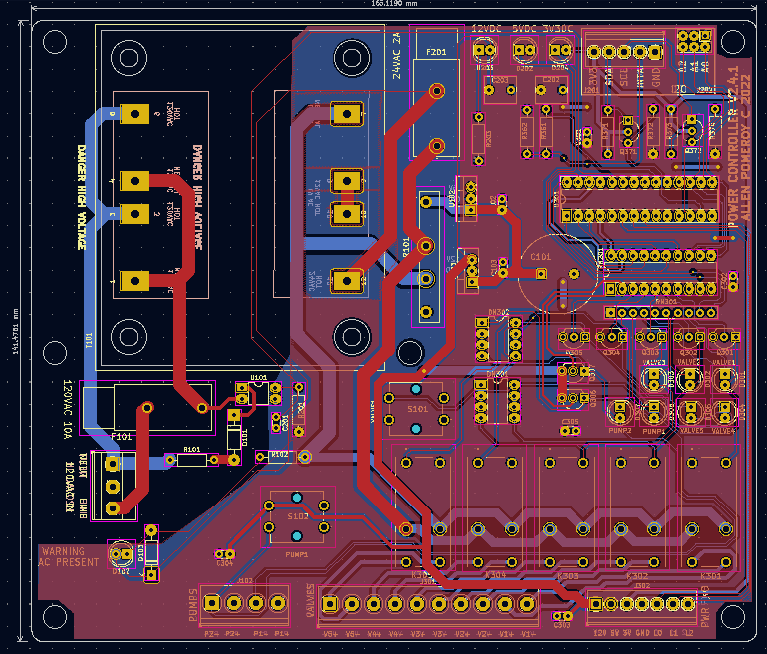
Imported the schematic design to the KiCad PCB Editor and was quickly able to setup board dimensions, component layout and solder zones. Chose a two layer board to keep costs down, even though I chose to use a PCB manufacturer stateside. OSHPark is a great organization to work with that produces top quality boards. General design guidelines I followed include assigning hot or neutral to each of the two layers as well as north-south or east-west paths. Even following those guidelines I did need to use a small number of vias to route a path across a layer’s traces.
Trace view of printed circuit board
I heavily used the KiCad PCB Editor 3D view feature to help validate component placement on the circuit board. Most of the components were sources from Mouser Electronics, which has links to component symbols and footprints usable with most electronic design software (EDS) packages including KiCad. Where there wasn’t a component library available, typically you can request a part library be created. Samac will generate a zip file that contains symbol, footprint and even 3D model.
Assembly
Assembly of the board started with all the low profile components to make it easier to lay flat and hold the components in place while soldering.
Testing
Once all the low power components were installed I ran some simple bench tests by feeding 3.3v and 5v to the power via the I/O block intended to provide power output once the board is completed. Only the passive components were plugged into their respective sockets so voltage tests and relay tests could be done.
Both Valve 1 and Pump 1 were successfully activated via the manual test buttons. Since there wasn’t any high voltage or on-board power yet, I determined the Valve 1 test was successful by running a resistance check from V1+ terminal screw to a 24VAC FUSED pad and V1- terminal screw to a LV NEUT pad. All the other terminal screws were open/off to both their respective 24VAC and LV NEUT feeds.
Pump 1 activated by push button successfully provided 12VDC to the Pump 1 screw terminals.
Active Component Testing
I removed all power and installed the MCP23017 IC then connected the 3V3, SDA, SCL and GND terminal block pins to the test Raspberry Pi. I also ran 5VDC from the Raspberry to the 5VDC I/O terminal block since the power supply components are not soldered in yet.
Powered on the Raspberry Pi and saw the 3V3 and 5V LEDs light up. Ran an i2cdetect to test connection to the PowerController:
We can see the PowerController MCP23017 showing up at I2C address 0x27. We can also see a temperature and humidity sensor card at I2C address 0x77 on the same bus.
Power Controller Software
I chose to use the MCP23017 integrated GPIO controller due to the inclusive and compact hardware (simple single 20 pin DIP) and the extensive Python libraries available to simplify coding for status and control.
powercontroller2.py –i2caddress: I2C address of the PowerController board, default 0x24 –testcount: Number of test cycles to run, default 3 –testontime: On time for tests (sec), default 1 –syslog: Send syslog status messages –testofftime: Off time for tests (sec), default 1 –verbose: Print progress messages –relay: [‘valve1’, ‘valve2’, ‘valve3’, ‘valve4’, ‘valve5’, ‘pump1’, ‘pump2’, ‘test’, ‘all’] Name of relay to operate on –action: [‘on’, ‘off’] Action to perform on relay. Note relay ‘all’ can only accept action ‘off’
Update 2025/03/04
powercontroller2.py has been archived and you will now see two new scripts in the github.com/allenpomeroy/PowerController repository as I chose to split the controller code into a daemon that initializes the MCP and pin direction only once on startup. The client script (irrigation-controller.py) now only sends commands and listens for results on a socket, which avoids output relays unnecessarily being reset while simply looking for a state status.
While there is no limitation in the control script to prohibit multiple relays engaged at the same time, it is recommend to have no more than two (2) valves active simultaneously to limit heat dissipation in the enclosure that houses the PowerController. Both pumps can be run simultaneously with valves due to low current draw of the control relays.
Next software enhancement will be a webhook listener for the Raspberry Pi so applications have a clean interface to control the valves/pumps and get status. Think web based scheduling system or even iPhone / Android mobile app.
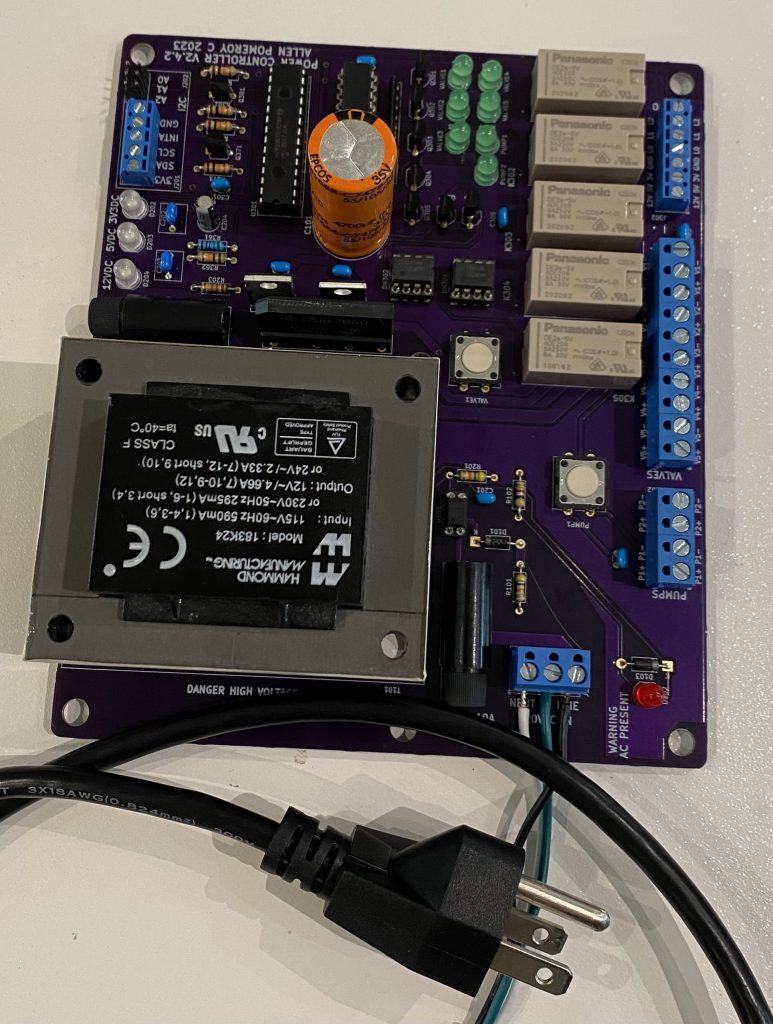
Finished Controller Board
For any of the schematics, PCB manufacture or part lists feel free to email me powercontroller at pomeroy dot us.
My brother John and I have joined a group of fellow trekkers that are undertaking a charity trip to the Tsum Valley in Nepal.
Help for the Tsum Valley
Our friends at the Compassion Project have visited Nepal and the Tsum Valley many times and have written books on the wonderful people and locale. Coming to understand the challenges of training and retaining health care workers and teachers in the Tsum area resulted in our group deciding to not only do a spring 2022 trek through the Tsum Valley but also to raise funds to improve both health care and education opportunities. Lacking viable healthcare and education forces Tsum residents to travel to larger towns or even to Kathmandu. The travel is long, expensive and has long lasting negative effects on the Tsum community. We have an opportunity to provide substantial help and improve the conditions of these Tsum residents.
We are raising funding for two primary goals: Improve healthcare and also education opportunities for the Tsum Valley. Specifically, healthcare funds go to: (1) purchasing medicine and medical supplies, and (2) nurse’s salary. Education funds go to: (1) teacher’s salary, (2) school supplies, and most important (3) our hot lunch program where every student gets a healthy hot lunch at school. It is difficult for the Tsum valley to recruit and retain both healthcare workers and teachers due to the rural nature. This fundraising effort will encourage education of Tsum locals that wish to remain/return to Tsum, helping to improve the community.
We have setup a fund raising site on CanadaHelps to direct funds into the Compassion Project.
Compassion Project EducationCompassion Project Medical
Fund raising goal: $8,000 Current funds raised: $2,850
About Tsum Valley
Tsum Valley is a sacred Tibetan Buddhist region and one of the hidden gems of Nepal. With the stunning backdrop of Sringi, Ganesh and Budda Himal mountain ranges, this serene valley is rich in ancient art, culture and religion. It is home to unique and important monasteries and trails are lined with artistic chortens and mani walls made of stone slabs inscribed with Buddhist prayers.
We tried very hard to stay up and awake until at least 9:30 so we could adjust and were moderately successful. Didn’t wake up until 2am then realized it was unexpectedly quiet and peaceful. No street noise, no crowds, no air conditioners. Turns out we were on the far side of the Stupa from main Kathmandu and surrounded by the monastery that also houses the local Kathmandu Llama so very peaceful. Helps when you can look on the Llamas residence from your hotel!
Hit a local Momo (local appetizer like a dumpling) cafe for a quick lunch bite before visiting the Durbar Square next to several temples and the Palace Museum.
The temples and the palace sustained significant damage in the 2015 earthquake and several countries have provided funding and technical expertise to help repair the damage to these ancient buildings. Damage to the ancient intricately carved wood columns is being done by carefully removing the damaged sections and replacing with pieces hand carved to match the original damaged parts.
Trek Day -2
The 31 hours of travel from Texas to Kathmandu was not as rough as I would have expected. Qatar Airlines was a refreshing experience even though I have used business class internationally before. Doha Hamad International Airport was spacious and modern. The lounge was a pleasant upgrade and made the six hour layover go quickly. After a chaotic but simple immigration process we were met by Tanzin and Tashi within the huge throng of arrivals, piled into the car and off into the morning Kathmandu traffic.
Hotel is close to the largest Stupa temple in Kathmandu. After walking around the Boudha Stupa we got a car to Patan to see the temples and palace. The traffic and skilled driver navigation and negotiation of massive traffic was almost as fun as seeing the temples. In the palace there was a display of a couple dozen pictures of the various valleys and the devastating impact of climate change.
Trek -1 Week
Final pack! We ship out this week. Starting to get real. Looking forward to getting to Kathmandu. Even though we’ll be there a couple days ahead of the crew, we have lots lined up to see.
Rule 2: Stop getting distracted by things that have nothing to do with your goals. – Robert Downy Jr.
In God we trust. All others we verify. – US Airforce
Making a decision to live congruently with your values is not quitting. – Tony Robbins
Close some doors not because of pride incapacity or arrogance, but simply because they no longer lead somewhere. – Paulo Coelho
Patience. Trust. Knowledge. Wisdom. Balance. Kanji tattoos I have and attributes I strived for during my MSc degree … and in life currently. – Allen Pomeroy
Workaround: Dont pound on the mouse like a wild monkey. – Sun Microsystems bug ticket
Definition of a security consultant: One who wont pass the buck … because he or she will refuse to accept it to begin with. – Jeff N
Securing an environment of Windows platforms from abuse – external or internal – is akin to trying to install sprinklers in a fireworks factory where smoking on the job is permitted. – Gene Spafford (to organizers of a workshop on insider misuse)
Security is always excessive until its not enough. – Robbie Sinclair, Head of Security, Country Energy, NSW Australia
Our greatest glory is not in never failing, but in rising every time we fall. – Confucius
Always tell the truth. Then you don’t have to remember anything. – Mark Twain
In today’s global Internet connected and reliant IT environment, the issue of corporate networks becoming compromised is a fact. Defense in depth is still and important design pattern, but organizations with even relatively mature capabilities are relying on detection since prevention is simply not enough anymore. Whereas several years ago we used to speak about prevention of externally facing application attacks through coding flaws that lead to SQL Injection and buffer overflow attacks, now successful attackers have moved onto the weakest link: users. Compromise of user credentials now comprises 96% of the successful attacks on organizations. Why go through the brute force and difficult path of application compromised when the attackers can simply conduct a successful spear phishing attack on individuals in the organization?
This is where advanced detection comes in. User and Entity Behavior Analysis leads to high quality alerts regarding anomalous behavior that is exhibited by accounts where the user has been successfully compromised. Same detection capability exists for detecting users that are exceeding their authority, typically classed as Insider Threat – as well the machine learning can also detect systems (entities) that are behaving in a way that is antithetical to it’s normal behavior. Think of Point of Sale or healthcare Internet of Things devices that have been compromised and there aren’t specific user identities that can be used to profile normal behavior.
Of all these technologies that can be deployed, the foundation must be a sound information security program that puts policies, standards, guidelines and procedures in place that authorizes and supports the controls. The Security, Cyber, and IA Professionals (SCIAP.org) group have pulled together a concise document that outlines how to build an Effective Security Program.
Installation of HPE ArcSight Enterprise Security Manager (ESM) 6.9.1 on CentOS 7.1 is substantially easier with engineering adding a “pre-installation” setup script to this version. For a smooth installation, there are still a few steps we need to take .. outlined below.
Base install of CentOS 7.1, minimal packages but add Compatibility Libraries. Be sure you use the CentOS-7-x86_64-Minimal-1503-01.iso revision since more recent releases of CentOS have other quirks that may make the ESM install or execution fail. Ensure /tmp has at least 5GB of free space and /opt/arcsight has at least 50GB of usable space – I’d suggest going with at least:
/boot – 500MB
/ – 8GB+
swap – 6GB+
/opt – 85GB+
Ensure some needed (and helpful) utilities are installed, since the minimal distribution does not include these and unfortunately the ESM install script just assumes they are there .. if they aren’t, the install will eventually fail.
yum install -y bind-utils pciutils tzdata zip unzip
Edit /etc/selinux/config and disable (or set to permissive) .. the CORR storage engine install will fail with “enforcing” mode of SElinux. I’ll update this at some point with how to leave SElinux in enforcing mode.
Disable the netfilter firewall (again, at some point I’ll update this with the rules needed to leave netfilter enabled).
(optionally edit /etc/ntp.conf to select the NTP servers you want your new ESM system to use)
systemctl enable ntpd; systemctl start ntpd
Edit /etc/rsyslog.conf and enable forwarding of syslog events to your friendly neighborhood syslog SmartConnector (optional, but otherwise how do you monitor your ESM installation?) .. you can typically just uncomment the log handling statements at the bottom of the file and fill in your syslog SmartConnector hostname or IP address. Note the forward statement I use only has a single at sign – indicating UDP versus TCP designated by two at signs:
$ActionQueueFileName fwdRule1 # unique name prefix for spool files

$ActionQueueMaxDiskSpace 1g   # 1gb space limit (use as much as possible)

$ActionQueueSaveOnShutdown on # save messages to disk on shutdown

$ActionQueueType LinkedList   # run asynchronously

$ActionResumeRetryCount -1    # infinite retries if host is down

# remote host is: name/ip:port, e.g. 192.168.0.1:514, port optional

#*.* @@remote-host:514

*.* @10.10.10.5:514
Restart rsyslog after updating the conf file
systemctl restart rsyslog
Optionally add some packages that support trouble shooting or other non-ESM functions you run on the ESM server, such as system monitoring
yum install -y mailx tcpdump
Untar the ESM distribution tar ball, ensure the files are owned by the “arcsight” user, then run the Tools/prepare_system.sh to adjust the maximum open files and other requirements that we used to manually update in previous releases. NOTE: in 6.9.1 there are some previous “shadow” requirements that are now enforced (eg. you don’t get to change) .. such as the application owner account must be “arcsight”, the installation directory must be “/opt/arcsight”. The “prepare_system.sh” script will check to see if there already is an “arcsight” user and if not, will create it. I usually manually create all the common users on my various systems since I want them to have the same uid / gid across all my systems.
Run the Tools/prepare_system.sh script as “root” user
Install your ESM 6.9.1 console on Windows, Linux or Mac OS X .. although the web interface is much richer in the last couple releases, you’ll still need to use the console for content creation and editing.
Optionally extend the session timeout period for the web interface. There still isn’t an easy setting to do this in the GUI, so get into command line on your ESM server and edit or add the following lines .. which indicate the timeout period in seconds. The default is around five (5) minutes. You should be able to edit these configuration files as the “arcsight” user, but I typically restart the services as “root”.
Restart the ESM services .. I typically run this as “root”
/etc/init.d/arcsight_services stop
/etc/init.d/arcsight_services start
Optionally configure the manager to display a static banner at the top of each console interface so you can have multiple consoles open and know what manager each is connected to (cool!):
Edit /opt/arcsight/manager/config/server.properties and add server.staticbanner.* properties (backgroundcolor, textcolor, text). Both backgroundcolor and textcolor take black, blue, cyan, gray, green, magenta, orange, pink, red, white, yellow as acceptable arguments. Text is the identifier you would like that manager to display, such as “super-awesome-production-box”
server.staticbanner.textcolor=green
server.staticbanner.backgroundcolor=black
server.staticbanner.text=esm691
Restart the ESM manager service .. I typically run this as “root”
/etc/init.d/arcsight_services stop manager
/etc/init.d/arcsight_services start manager
If you are going to install any SmartConnectors on the system hosting your Enterprise Security Manager, check out my post regarding required libraries for CentOS and RedHat, before you try to run the Linux SmartConnector install. This includes any Model Import Connectors (MIC) or forwarding connectors (SuperConnectors).
This project aims to provide an efficient way to provide mutual protection from deemed bad actors that attack Internet facing servers. The result will be an open source set of communication tools that use established protocols for high speed and light weight transmission of attacker information to a variable number of targets (unicasting to a possibly large number of hosts).
Background
There are many open source firewall technologies in widespread use, most based on either packet filter (pf) or netfilter (iptables). There is much technology that provides network clustering (for example, OpenBSD’s CARP and pfsync; netfilter; corosync and pacemaker), however it’s difficult for disparate (loosely coupled) servers to communicate the identity of attackers in real time to a trusted community of (tightly coupled) peers. Servers or firewalls that use state-table replication techniques, such as pfsync or netfilter, have a (near) real-time view of pass/block decisions other members have made. There needs to be a mechanism for loosely coupled servers to share block decisions in a similar fashion.
Our goal is to create an open source tool for those of us that have multiple Internet facing servers to crowd source information that will block attackers via the firewall technology of choice (OpenBSD/FreeBSD pf/pfSense, iptables, others).
Project Page
All project files are still private yet, but when we publish to GitHub or SourceForge, this section will be updated.